October 20, 2026
Google Reviews QR Code: How to Get Yours Free, Where to Put It and How to Ask
 By Rohit GuptaUpdated 15 min read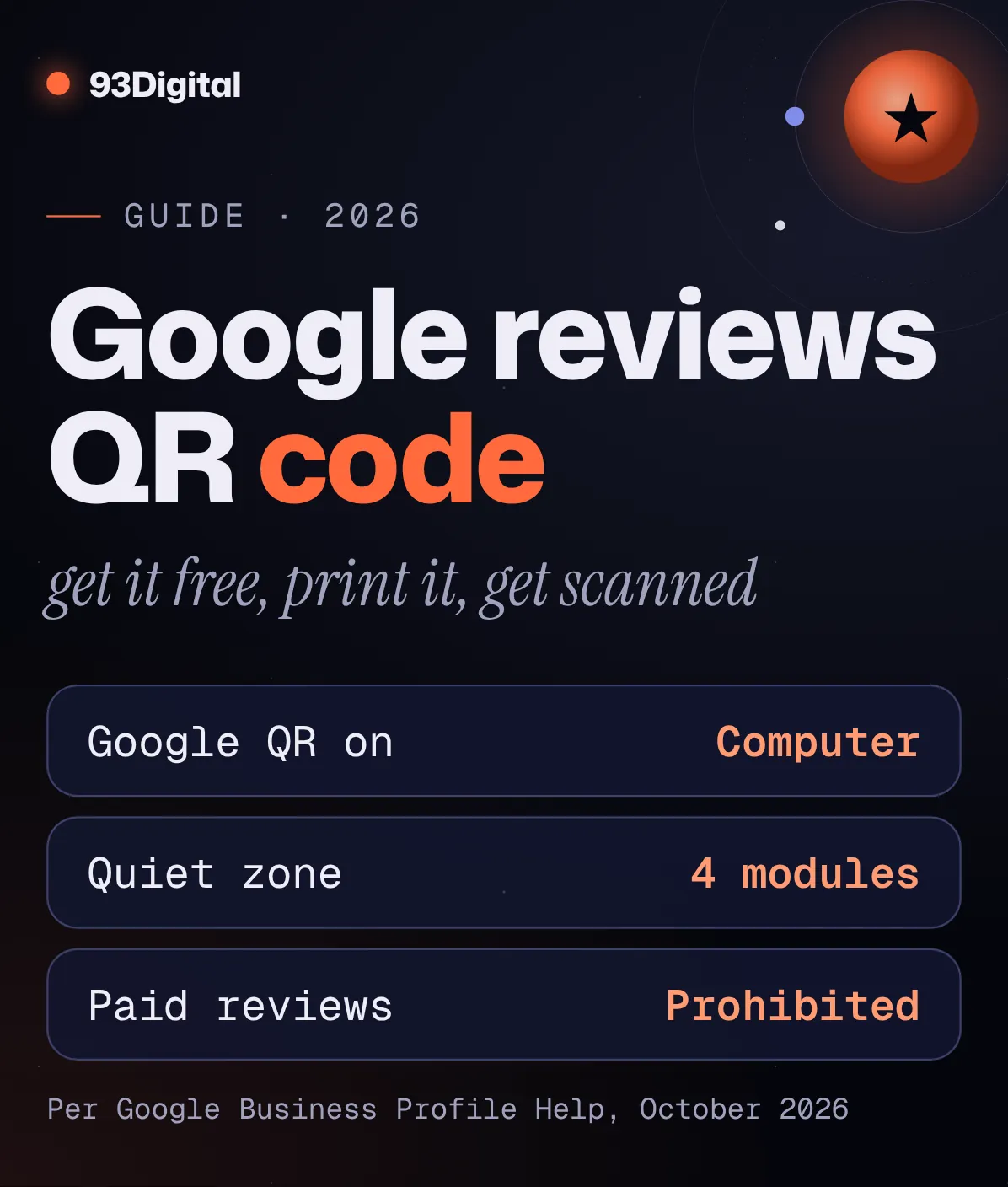
A happy customer is standing at your counter right now. She just told you the service was great. Then she walks out, and you never hear from her again.
Not on Google, anyway.
Why? Probably because nobody made it easy. Search your name, find the reviews tab, tap the stars: that’s a lot to ask of someone holding a carry bag.
A Google reviews QR code cuts all of that down to one scan.
The best part? Google gives you one free. You just need to know where to find it, how to print it, and how to ask without breaking Google’s rules.
Quick answer: how do I get a Google reviews QR code?
Sign in to your Google Business Profile on a computer, select “Read reviews”, then “Get more reviews”, and right-click the QR code to save it. Google says review QR codes can only be generated in a computer browser. You can also copy your review link there and turn it into a QR code with a generator.
- Free from Google: Business Profile → Read reviews → Get more reviews → right-click QR → “Save image as…”
- Free generator: paste your review link or Place ID into our tool below for a PNG and a printable A6 card
- Put it where customers wait or pay: counter, bill, packaging, WhatsApp, visiting card
- Never offer a discount or gift for a review. Google’s policy prohibits it.
Here’s the thing: the QR code is the easy part. What decides how many reviews you get is where you place it, how you ask, and whether you stay within Google’s review policies.
In this guide I’ll walk you through:
- How to get your QR code and review link from Google Business Profile
- A free generator that makes a printable “Scan to review us” card
- Where to put the code, and how to print it so it scans
- Scripts for asking in person, on WhatsApp and by SMS
- What Google bans, and how to reply to reviews
Do Google reviews help your business rank on Google Maps?
Yes. Google’s own help page says local results are based mainly on relevance, distance and prominence, and that more reviews and positive ratings can help your business’s local ranking. Reviews feed into prominence, which reflects how well known your business is.
- Relevance: how well your Business Profile matches what someone searched. Complete, detailed business information helps here.
- Distance: how far you are from the person searching. You can’t change this one.
- Prominence: how well known you are. Google says this is based on things like how many websites link to you and how many reviews you have.
Distance is fixed. Relevance is mostly a one-time setup job. Prominence is the factor you can keep growing every week, and reviews are the part of it you control most directly.
Google also says that replying to reviews “shows that you value their feedback,” and that positive reviews and helpful replies can help your business stand out.
Reviews are one piece of the picture. The full setup (profile, categories, location pages, citations) is what our local SEO services cover.
How do you get a Google reviews QR code from Google Business Profile?
Open your Business Profile on a computer (signed in to the account that manages it), select “Read reviews”, then “Get more reviews”. A pop-up shows your review link and a QR code. Right-click the QR code and choose “Save image as…” to download it.
Here are Google’s steps:
- Open your Business Profile on a computer. Go to business.google.com and sign in with the account that owns or manages the profile.
- Select “Read reviews”.
- Select “Get more reviews” (it has a share icon). Google’s own launch post on X in March 2025 described this option as “ask for reviews”, so the wording you see may differ slightly.
- Copy the review link using the copy icon, if you want to send it by message or email.
- Download the QR code by right-clicking it and selecting “Save image as…”.
The same pop-up also offers sharing by email, WhatsApp or a Facebook post.
Can you get the QR code on your phone?
Not at the time of writing. Google’s help page says review QR codes can only be generated on a computer browser. You can still manage your profile in the Google Maps app (tap Business at the bottom right), but for the QR code, use a laptop.
Only have a phone? Borrow a computer once, copy your review link, WhatsApp it to yourself, and paste it into our generator below whenever you need a QR code.
How do you find your Google review link?
There are two reliable ways: copy the review link from your Google Business Profile (“Read reviews” → “Get more reviews” → copy icon), or look up your Place ID with Google’s free Place ID Finder and turn it into a review link with our Google review link generator.
Option 1: Copy it from Google Business Profile (best)
This is the link Google itself gives you, so use it if you have access to the profile. Follow the steps above and click the copy icon.
Option 2: Use your Place ID
No access to the profile yet (say an old agency still holds it)? Every place on Google Maps has a Place ID, which Google describes as a textual identifier that uniquely identifies a place in the Google Places database and on Google Maps.
- Open Google’s Place ID Finder (it’s on Google’s own developer site).
- Type your business name in the search box and pick it from the suggestions.
- A marker drops on the map with an info window showing your Place ID. Copy it.
One catch: Google says place IDs “may change over time.” If you build a QR code from one, re-scan it every few months to check it still works.
Make a printable “Scan to review us” card
Paste your Google review link (or your Place ID) below and you’ll get a QR code that opens your Google review box, plus a printable “Scan to review us” card with your business name.
Here’s what the tool does:
- Accepts either input: the review link you copied from Google Business Profile, or your Place ID from Google’s Place ID Finder. With a Place ID, it builds the review link for you.
- Runs in your browser. The QR code is created on your device. Nothing you paste is uploaded to us.
- Downloads a PNG you can drop into a bill template or packaging design.
- Downloads a printable A6 card (a quarter of an A4 sheet) that says “Scan to review us” with your business name, ready for the counter.
Need more than a card? Our full Google review link and QR code generator also writes a WhatsApp review request with your link in it. For other QR codes, like UPI payments or Wi-Fi, use the free QR code generator.
So which should you use: Google’s QR code or a generator?
| Option | What you get | Good to know |
|---|---|---|
| Google Business Profile QR | A QR code image and review link from Google | Computer only; you need access to the profile |
| Our free generator | QR code PNG plus a printable A6 “Scan to review us” card | Works with a review link or a Place ID; runs in your browser |
| Other online generators | Varies by tool | Check the code points straight to Google, not to a redirect link you don’t control |
Google’s steps checked against its Business Profile Help page, October 2026.
Where should you put your Google review QR code?
Put your QR code wherever customers pause after a good experience: the billing counter, the bill or invoice, product packaging, WhatsApp messages and your visiting card. Google itself suggests receipts, thank-you emails, the end of a chat and a printed QR code in your store.
The trick is timing. Ask when the customer is happiest and has a free hand.
- Billing counter: a standee next to the UPI scanner. People already have their phones out.
- Bill or invoice: a small QR code in the footer: “Loved it? Tell others on Google.”
- Packaging: an insert card for D2C brands, a sticker on the delivery bag for cloud kitchens.
- WhatsApp: send the review link, not the QR image. Nobody can scan their own screen.
- Visiting card: the back is free space. Use it.
| Business | Best QR spot | Best moment to ask |
|---|---|---|
| Clinic in Indore | Reception desk, prescription footer | After a smooth follow-up visit |
| Restaurant or café | Table tent, bill folder | When the bill arrives |
| D2C brand | Insert card in the box | Follow-up message after delivery |
| Coaching centre | Notice board, fee receipt | After results or a parent meeting |
| Salon or spa | Mirror sticker, counter standee | While they admire the result |
Suggested placements, not Google requirements.
How do you print a Google review QR code that actually scans?
Print it dark on a light background, leave a clear white margin around it, make it big enough for the scanning distance, and test it with a few different phones before printing a full batch. A perfect code can still fail if it’s printed badly.
- Keep the quiet zone. A QR code needs an empty margin around it. Barcode maker Keyence notes standard QR codes need a margin of four modules (four of the tiny squares) on each side. Don’t let your designer crop it tight.
- Dark on light. Black on white scans best. Avoid light-coloured codes, inverted (white-on-black) codes and busy photo backgrounds.
- Size for the distance. A code on a bill is read from a hand’s length; one on a wall poster from across the room, so it must be much bigger.
- Watch the finish. Glossy lamination under shop lights can cause glare. Matte is safer.
- Add a call to action. “Scan to review us on Google” beats a bare code.
- Test before you print 500. Scan it with an Android phone and an iPhone, in your actual shop lighting, and check it opens your review box.
Want a logo in the middle? QR codes have built-in error correction (up to about 30% of the code can be damaged at the highest level, per Keyence), but a logo eats into that margin. Test extra carefully.
How do you ask customers for Google reviews?
Ask in person at a happy moment, keep it short, and make it easy: point to the QR code or send your review link the same day. Ask every customer, not just the ones you expect to be happy, and never offer anything in return.

The common mistake? Putting up a QR code and waiting.
A QR code on the wall gets ignored. A QR code plus one sentence from a real person gets scanned.
Use these scripts, in your own words.
In person (at the counter)
“Thank you for coming in today! If you have a minute, would you share your experience on Google? Just scan this. It helps other people find us.”
Then stop talking and point to the standee.
On WhatsApp
“Hi Priya, thank you for visiting Sharma Dental Clinic today. We’d love to hear how your visit went. If you have a minute, please share your experience on Google: [review link]. Thank you!”
Tip: in the WhatsApp Business app, save this as a quick reply (Business tools → Quick replies), then type “/” in any chat to pull it up.
Sending dozens of these a day? That’s when it’s worth automating review requests on WhatsApp, so every customer gets a polite message after their visit or delivery.
By SMS
“Thanks for shopping at Green Leaf Organics! Tell us how we did on Google: [review link]”
Keep SMS short. If you send bulk SMS from a business sender ID, TRAI’s rules require your business, sender header and templates to be registered on the DLT platform. Your SMS provider can help.
Can you offer a discount or gift for a Google review?
No. Google’s policy says businesses may not offer incentives such as payment, discounts, free goods or services in exchange for reviews, or for changing or removing a negative review. Incentivised reviews are treated as fake engagement and removed.
So “Show us your 5-star review and get 10% off” is out. Google’s prohibited and restricted content policy lists what’s not allowed. For businesses, the big ones are:
- Incentives: payment, discounts, free goods or services in exchange for a review, or for editing or removing a negative one.
- Review gating: Google says merchants must not “discourage or prohibit negative reviews, or selectively solicit positive reviews from customers.” So no “Happy? Review us on Google. Unhappy? Fill this private form” funnels.
- Paid or fake reviews: reviews paid for “directly or in kind”, or posted from multiple accounts by one person.
- Conflict of interest: Google lists current or former employment as a conflict of interest. Your staff (and you) shouldn’t review your own business.
Break the rules and, beyond removing the reviews, Google’s Business Profile restrictions page says it may block new reviews for a set period, unpublish your existing reviews for a set period, and show a warning on your profile telling customers that fake reviews were removed.
Google is also asking users about this. PPC Land reported in June 2026 that Google Maps has been showing some users the question “Does this business offer rewards in exchange for reviews?”
How should you reply to Google reviews?
Reply with a short, polite, personal message, especially to negative reviews. Google advises keeping replies brief and professional, not offering deals, never sharing private information, and responding to negative reviews calmly by acknowledging real mistakes and taking complex issues offline.
To reply, your profile must be verified. Open your Business Profile, select “Read reviews”, click the reply icon next to the review, type your reply and select “Reply”. The reviewer gets notified.
Google checks replies against its content policies first, which usually takes up to 10 minutes but can take up to 30 days.
Replying to a positive review
“Thank you, Rahul! Glad the root canal was less scary than you expected. Dr. Mehta will be happy to hear it. See you at your check-up. – Team Sharma Dental”
Name, specific service, human tone. Google’s tips say to avoid generic thank-yous.
Replying to a negative review
“Hi Anjali, we’re sorry your order arrived late. That’s not the experience we want for you. Please call us on [number] or email [address] so we can sort this out. – Neha, Customer Care”
Google’s guidance: don’t attack the reviewer or share their private details, admit real mistakes, apologise where appropriate, sign your name, and reply promptly.
And remember, customers can edit their review after reading your reply. A calm, helpful reply gives them a reason to.
Google review QR code mistakes to avoid
Watch out for these:
- Offering a discount, gift or lucky draw for reviews. It’s against Google’s policy, and the penalty can hit your whole profile.
- Review gating. Sending only happy customers to Google and unhappy ones to a private form.
- Asking staff, family or friends to post reviews. Google treats employment and close affiliations as a conflict of interest.
- Putting the QR code where nobody pauses. Put it where people wait or pay, not on the entrance door.
- Printing without testing. A cropped quiet zone or low-contrast colours can make a whole print run useless.
- Sending a QR image on WhatsApp instead of the link. Your customer can’t scan their own screen.
- Using a third-party redirect link you don’t control. If that service shuts down, every printed card stops working.
And if your profile and website aren’t pulling their weight, reviews alone won’t fix it. Our local SEO team can look at the full picture (and our guide to SEO cost in India shows what local SEO typically costs).
Google reviews QR code: frequently asked questions
How do I get a QR code for Google reviews?
Open your Google Business Profile on a computer, select “Read reviews”, then “Get more reviews”, and right-click the QR code to save it. You can also paste your review link into a free generator like ours.
Is the Google reviews QR code free?
Yes. Google says creating a Business Profile is free, and the review QR code is part of it. Our generator on this page is free too. You only pay for printing.
How do I find my Google review link?
Open your Business Profile on a computer, select “Read reviews”, then “Get more reviews”, and click the copy icon. If you don’t have access to the profile, find your Place ID with Google’s Place ID Finder and use a generator to turn it into a review link.
Can I create a Google review QR code on my phone?
Not from Google. Its help page says review QR codes can only be generated on a computer browser. If you already have your review link, paste it into our generator, which works in a phone browser too.
What is a Google Place ID?
A Place ID is a text identifier that uniquely identifies a place on Google Maps. Look yours up with Google’s free Place ID Finder. Place IDs can change over time, so re-test any QR code built from one every few months.
Can I offer a discount in exchange for a Google review?
No. Google’s policy prohibits offering payment, discounts, free goods or services for reviews, or for changing or removing a negative review. Google can remove such reviews and restrict your profile, including blocking new reviews for a period.
Do Google reviews help local SEO?
Yes. Google’s help page on local ranking says more reviews and positive ratings can help your local ranking. Reviews are part of prominence, one of the three main factors along with relevance and distance.
Sources and how we researched this
We researched this guide in October 2026. We followed Google’s current Business Profile Help pages for the review link and QR code steps, read Google’s local ranking, review reply and content policies, and checked Google’s developer documentation for Place IDs. Printing guidance comes from barcode-industry documentation. We left out any steps or link formats Google doesn’t document officially.
- Google Business Profile Help: Create a Google link or QR code to request reviews (steps, computer-only QR, sharing options)
- Google Business Profile Help: How to improve your local ranking on Google (relevance, distance, prominence and reviews)
- Google Business Profile Help: Tips to get more reviews (best practices, reply tips, Google Account requirement)
- Google Business Profile Help: Manage customer reviews (how to reply, approval time, notifications)
- Google Maps: Prohibited and restricted content (fake engagement, incentives, review gating, conflict of interest)
- Google Business Profile Help: Restrictions for policy violations (review blocks and profile warnings)
- Google Business Profile: Get listed on Google (Business Profile is free)
- Google Business Profile Help: Edit your Business Profile (Google Maps app Business tab)
- Google Maps Platform: Place ID Finder (free Place ID lookup)
- Google Maps Platform: Place IDs (what a Place ID is, and that it can change)
- Website Builder Expert: Google’s new review QR code (March 2025 launch and “ask for reviews” wording)
- PPC Land: Google Maps asks users if businesses paid for reviews (June 2026 report)
- Keyence: What is a QR code? (four-module margin and error correction levels)
- WhatsApp Help Center: How to use quick replies (how to save and send quick replies)
- Infobip: DLT registration in India (TRAI rules for business SMS)
Spotted a step that’s changed in Google Business Profile? Tell us and we’ll update this guide.
The bottom line
Getting a Google reviews QR code takes two minutes. Google gives you one free in your Business Profile, and our generator turns your review link into a print-ready card.
The real work is the habit: put the code where people pause, ask every customer with one friendly sentence, and reply to every review.
And never pay, discount or gate your way to reviews. The shortcut can cost you your whole profile.
Want to know what else is holding your business back on Google Maps? Get a free growth audit and we’ll show you exactly where your local visibility stands, and what to fix first.
Founder of 93Digital. Rohit has worked in SEO and digital marketing since 2007, through every major Google update, and runs paid ads with one rule: a campaign has to pay for itself.