October 21, 2026
Google Business Profile Verification: Every Method, the Video Shot List and What to Do When Google Says No
 By Rohit GuptaUpdated 16 min read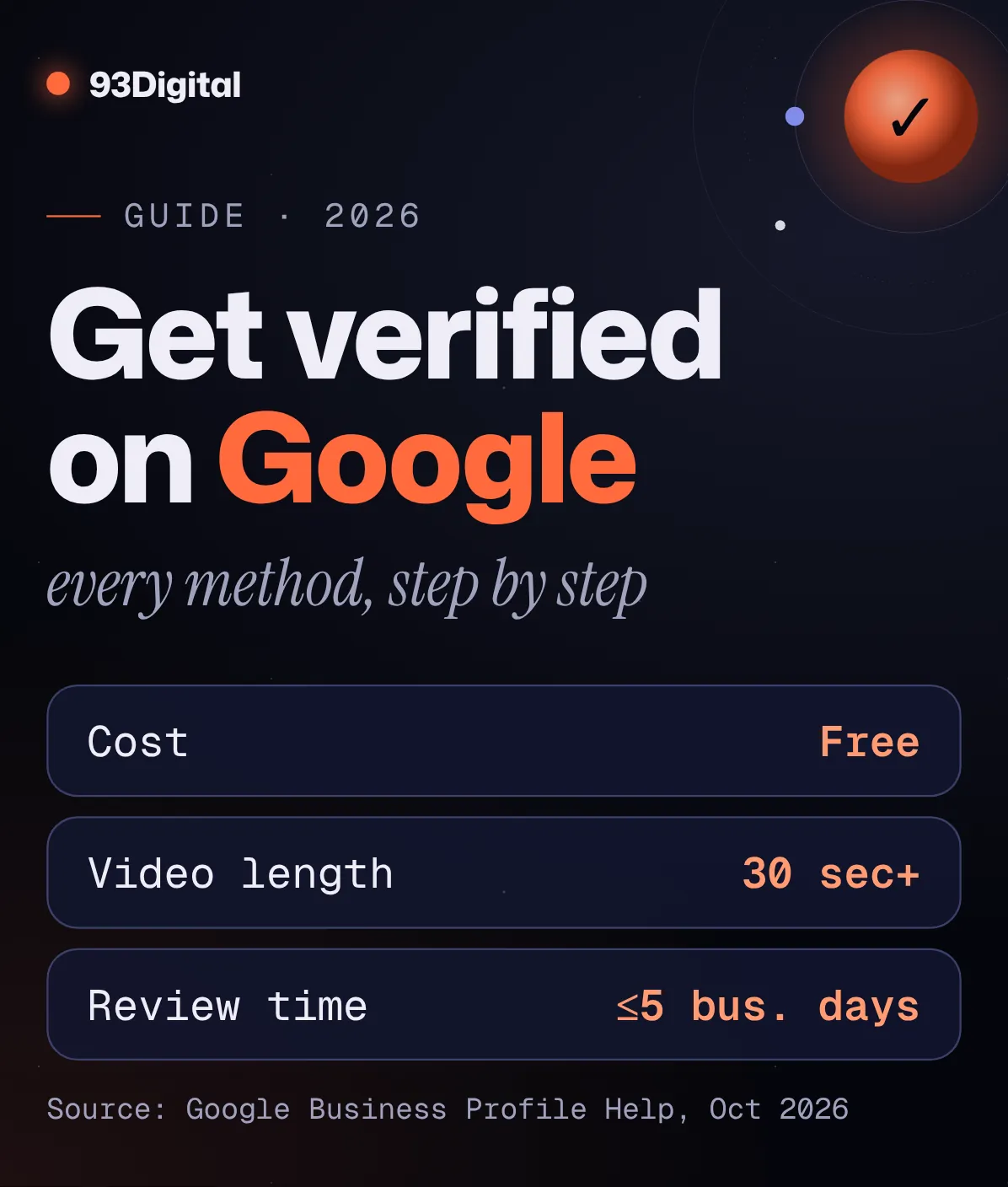
You found your business on Google Maps. You tapped “Claim this business.” And then Google asked you to film a video of your shop.
Wait, what?
If that’s where you’re stuck, you’re not alone. Google now picks how you verify, and when video is on offer, Google recommends you use it.
The good news? Once you know what Google is actually checking, verification gets much easier. And it costs you nothing.
Quick answer: how do you verify a Google Business Profile?
Sign in to your Google Account, find or add your business on Google (business.google.com/add or Google Maps), select “Claim this business” or “Get verified,” and complete the verification method Google offers you. Google decides which methods you get based on your business type, public information, region and business hours. You can’t change them.
- Video recording: one live, continuous video (30+ seconds) of your location, business and proof you manage it
- Live video call: a call with Google support during your business hours
- Phone or text: a code sent to your business number
- Email: steps sent to the address shown on screen
- Postcard: a 5-digit code by post (most arrive within 14 days)
- Instant: in some cases, if your website is verified in Search Console or you use bulk verification
Verification is free. Google says reviews take up to 5 business days, occasionally longer.
Here’s the thing: verification isn’t Google being difficult. It’s Google checking three facts: that your business is real, that it’s where you say it is, and that you’re the one who runs it.
In this guide I’ll walk you through:
- A before-you-start checklist
- Every verification method, step by step
- A shot list for the video, based on Google’s requirements
- Timelines (only the ones Google publishes)
- Why verification fails, and what to do about failures and suspensions
- What to set up once you’re verified
What is Google Business Profile verification, and is it free?
Google Business Profile verification is how you prove to Google that you own or are authorised to manage a business, so you can control its profile on Search and Maps. It’s free: Google says you can add or claim your business at no charge.
Why bother? Because an unverified profile is half a profile:
- Your edits are limited. Google says you need to verify to edit all your info.
- Your photos stay hidden. Photos and videos show up only after you verify.
- Your posts don’t go live. Posts on an unverified profile stay “Pending” and don’t appear on Search or Maps.
Run a clinic in Indore or a coaching centre in Kota with an unverified profile? Customers see what Google pieced together, not what you want them to see.
What should you check before you start verification?
Before you start, make sure your business is eligible and that your name, address, category, phone and signage match the real world exactly. Any mismatch between your profile and what Google sees in your video or documents is an easy reason to reject you.
- Confirm you’re eligible. Google requires in-person contact with customers during your stated hours. Online-only businesses and properties for rent or sale don’t qualify.
- Use the right Google Account. One you control, not a freelancer’s personal Gmail.
- Write your name exactly as it appears on your signage. “Sharma Dental Clinic,” not “Sharma Dental Clinic – Best Dentist in Indore.” Extra keywords or taglines in the name aren’t allowed and can lead to suspension.
- Use a real, precise address. PO boxes and virtual offices aren’t eligible. A co-working desk needs clear signage and staff during business hours.
- Pick the most specific primary category. Google’s own example: “Nail salon” rather than “Salon.”
- Check your phone number. It must be under your direct control, and Google says IVR systems won’t receive the code.
- Add your own website, not a page that redirects elsewhere.
- Check your signage. Storefronts need permanent signage with the business name. None? Set up as a service-area business instead.
One more rule: once you start, stop editing. Get everything right first, then verify.
How do I verify my Google Business Profile? (step by step)
To verify your Google Business Profile, add or claim your business, then follow the method Google shows you. On a computer, start at business.google.com/add. On a phone, open the Google Maps app, find your business and tap “Claim this business.”
If your business isn’t on Google yet
Go to business.google.com/add, select “Add your business to Google,” enter your details and complete the verification option Google shows you.
If your business is already on Google but unclaimed
- Open Google Maps (desktop browser or the app) and search for your business name and city.
- Select your business. In the app, tap “About.”
- Select “Claim this business,” then “Manage now.”
- Pick a verification option and follow the on-screen instructions.
If someone else already verified it
Maybe an ex-employee or old agency set it up. Search for the business at business.google.com/add, select “Request access,” and fill in the form. Google says the current owner has 3 days to respond. If they don’t, you may be able to claim the profile from the confirmation email (“View request,” then “Verify”), though Google notes that option isn’t always available.
What are the Google Business Profile verification methods?
The verification methods are video recording, live video call, phone or text, email and postcard, plus instant verification in some cases. Google automatically picks which ones you see based on your business type, public info, region and business hours, and you can’t change them.
Some businesses must complete more than one. If video is offered, Google recommends it.
| Method | How it works | Watch out for |
|---|---|---|
| Video recording | Record one live video on your phone inside the Business Profile and upload it | Must be continuous, unedited and at least 30 seconds |
| Live video call | A Google support rep guides you through a video call | Only during your business hours; not offered to everyone |
| Phone or text | Answer the call or open the text, then enter the code | IVR systems won’t get the code |
| Use the email address shown on the verification screen | You must have access to that exact address | |
| Postcard | Google posts a 5-digit code to your address | Codes expire after 30 days; don’t edit or re-request while waiting |
| Instant | Happens in some cases if your website is verified in Search Console | Not guaranteed; Google does it only in some cases |
| Bulk | For chains with 10 or more locations | Not for service-area businesses |
Google Business Profile Help, checked October 2026. Trust what your own profile shows.
Tips for the non-video methods
- Phone or text: keep the business phone with you. A number behind an IVR (“Press 1 for appointments…”) won’t capture the code.
- Postcard: while you wait, don’t edit your name, address or category, and don’t request a new code. A new request invalidates the earlier one.
- Live video call: a support rep asks you to show your location, your business or equipment, and proof you manage it. Do it from the premises.
- Instant: if your site is already verified in Google Search Console, Google sometimes verifies you on the spot.
How does Google Business Profile video verification work?
Video verification means recording one live, continuous, unedited video of at least 30 seconds on your phone, inside your Business Profile, that shows where your business is, that it exists, and that you manage it. Pre-recorded footage isn’t allowed, and Google reviews it in up to 5 business days.

Google’s requirements, in plain English:
- Live only. No old videos from your gallery, no edited clips.
- One continuous take of at least 30 seconds, recorded and uploaded from your phone through your Business Profile.
- No sensitive information. No bank, tax or ID numbers, and no other people’s faces.
Think of your video as one unbroken walk from the street to the cash counter.
The shot list for a storefront business
Say you run a pharmacy in Lucknow. Plan the walk, then record in this order:
- Start outside, at street level. Film a street sign, building number, neighbouring shops or a familiar landmark. This proves where you are.
- Pan to your storefront. Show the business name printed on permanent signage. It must match your profile name and be on a permanent fixture, so a temporary banner won’t do.
- Walk in through the entrance without stopping. Show the shop floor, products, showroom or workspace customers see.
- Show proof of management. Google asks for things only an employee can access: open the cash register, unlock the storeroom, show the kitchen or log in to your point-of-sale system.
- Stop recording, review the clip, and upload it. If something is missing, tap “Try again” and record from the start.
Watch Google’s example storefront verification video once before you record.
How to record and upload it
- On your phone, go to business.google.com and tap “Get verified.” Enter your phone number if asked.
- Tap “Business video,” then “Next.” Read the requirements.
- Allow location, camera and microphone access if prompted.
- Tap “Start recording,” record your walk-through, and tap stop.
- Review it. Re-record with “Try again” if needed, then tap “Upload video.”
Use good light, hold the phone steady and move slowly.
How do service-area businesses verify?
Service-area businesses, such as plumbers or AC repair technicians, verify by showing where they operate, the tools that prove the business exists, and proof of management like a branded vehicle, permit, invoice or utility bill in the business name.
Google defines a service-area business as one that visits or delivers to customers but doesn’t serve them at its address. If that’s you:
- Remove your address from the profile if you don’t serve customers there.
- Add up to 20 service areas by city, PIN code or area. You can’t define your area as a radius around your address.
- Keep it realistic. Google says your overall area shouldn’t extend beyond about 2 hours of driving time from your base.
A hybrid business (say, a restaurant in Pune that also delivers) keeps its address and adds a service area.
Video shot list for a service-area business
- Show where you operate. Film street signs or landmarks at your business address. Working from home? Google says you can record landmarks and signs in your immediate neighbourhood. Avoid empty plots with no clear markers.
- Show the business exists. Your professional tools, equipment, stock, workspace, business cards or branded uniform.
- Show proof of management. Unlock your branded van, perform a part of your service, or show a business permit, invoice or utility bill with your profile’s business name.
Google has an example service-area verification video too.
Setting up a service-area profile so it actually shows up in the right PIN codes is a big part of our local SEO work for Indian businesses.
How long does Google Business Profile verification take?
Google says verification reviews take up to 5 business days, occasionally longer. Postcard codes usually arrive within 14 days, and some profiles are verified instantly. Here are only the timelines Google itself publishes:
| Step | Google’s documented timeline |
|---|---|
| Verification review (including video) | Up to 5 business days, occasionally longer |
| Postcard delivery | Most codes arrive within 14 days |
| Postcard code validity | Expires after 30 days |
| Instant verification | Immediate, in some cases |
| Bulk verification (10+ locations) | No timeline published; Google contacts you if it needs more |
| Owner’s reply to an access request | 3 days |
| Appeal decisions | Up to 5 business days |
Source: Google Business Profile Help, checked October 2026.
Waiting longer than that? Check whether the “Get verified” button has reappeared on your profile. If it has, the verification wasn’t completed.
Why isn’t Google verifying my business?
Google typically won’t verify a business when its evidence doesn’t match the profile: the name isn’t visible on permanent signage, the surrounding area isn’t shown, there’s no proof you manage it, or details changed mid-process. Ineligible businesses can’t be verified at all.
Check these causes, and the fix for each:
- Name not visible on the storefront. One of Google’s own rejection examples. Fix: film your permanent signboard clearly, matching the profile name word for word.
- No nearby area shown. Fix: begin outside, at a street sign, building number or landmark.
- Missing proof you run the business. Fix: show staff-only access (cash counter, POS, storeroom) or, for service-area businesses, a permit, invoice or utility bill in the business name.
- Video broken up, edited or under 30 seconds. Fix: one continuous live take from start to finish.
- Keywords in the business name. “Best AC Repair Pune – Sharma Services” won’t match your signboard and breaks Google’s name rules. Fix: use your real-world name.
- Ineligible address. Virtual offices, PO boxes and unstaffed co-working desks don’t qualify. Fix: use where you meet customers, or go service-area.
- Online-only business. If you never meet customers in person, Google says you’re not eligible for a Business Profile.
- Edits made mid-process. Google says a request for more details usually means your info was recently updated, and that category edits may trigger re-verification. Fix: finish your edits first, then verify.
What should you do if verification fails or your profile is suspended?
If your video is rejected, open your profile, tap “Review issues,” fix what Google lists and record a new video. If your profile is suspended, don’t create a new one; fix any guideline problems and submit an appeal through Google’s Business Profile appeals tool.
If your video was rejected
- Open your Business Profile and tap “Review issues.” Google lists what was missing.
- Record a new video that includes everything from your first video, plus the missing piece. Don’t just film the missing part.
- Still failing? Try another method if one is offered. Then use the Business Profile community forum or contact Google support.
If your profile is suspended or disabled
Google may suspend or disable profiles that break its guidelines. Here’s how to respond, per Google’s guide to fixing suspended or disabled profiles:
- Fix the problem first. Check your name, address and category against Google’s guidelines.
- Gather evidence. Google lists business registration, a business licence, tax certificates and utility bills. For an Indian business, think GST certificate, shop and establishment licence or electricity bill. Names and addresses must match your profile.
- Open the appeals tool, sign in with the account linked to the profile, select the profile and the decision, upload your evidence and submit.
- Wait for the email. Google says appeal decisions can take up to 5 business days.
Two things not to do: don’t file the same appeal twice (Google says appeals can only be submitted once), and don’t create a new Business Profile for the same business.
Ten or more suspended locations? The appeals tool accepts a bulk reinstatement request with a spreadsheet of profile IDs.
How do you verify multiple locations?
If your business has 10 or more locations, you may be able to use bulk verification from Business Profile Manager on a computer (Verifications, then Chain, then Start). Businesses with fewer than 10 locations verify each profile individually.
- Duplicate, suspended or disabled profiles don’t count towards the 10.
- Service-area businesses aren’t eligible, and agencies holding several businesses in one account can’t bulk verify.
- List every location you manage. Only owners or authorised representatives can submit.
- Google may still ask for video verification, with an authorised person at the location.
If you don’t see the “Verifications” tab, Google says you may not have enough eligible profiles.
What should you set up after your profile is verified?
After verification, complete your categories, photos, hours and services, start posting updates, and build a steady flow of reviews. A verified but empty profile wastes the effort you just made.
- Categories: Recheck your primary category and add a few relevant additional ones. Google says the categories you select affect your local ranking.
- Photos: Add a cover photo, logo, storefront and interior shots. Google accepts JPG or PNG from 10 KB to 5 MB, recommends 720 x 720 pixels, and wants images that “represent reality.”
- Posts: Publish Updates, Offers or Events. Posts older than six months are archived unless they have a date range, so post regularly.
- Reviews: Ask happy customers with a Google review link or QR code, and reply to every review, good or bad. Here’s our guide to creating a Google reviews QR code for your counter. Never offer discounts or freebies for reviews; Google strictly prohibits it.
- Access: Keep ownership in your own account and add staff or your agency as managers.
Verification gets you on the field. Ranking in the local pack is the actual game. If you’d rather hand that part off, here’s how our local SEO service handles profile optimisation, reviews and location pages. (And if you’re comparing quotes, our guide to SEO cost in India covers what local SEO typically costs.)
Google Business Profile verification: frequently asked questions
How do I verify my Google Business Profile?
Sign in to your Google Account, add your business at business.google.com/add or find it on Google Maps and select “Claim this business,” then complete the method Google offers: video recording, live video call, phone or text, email or postcard. Google chooses the methods, and you can’t change them.
How much does it cost to verify your business on Google?
Nothing. Google says you can add or claim your business at no charge, and creating a Business Profile is free. If someone charges you for verification, you’re paying for their time, not a Google fee.
Is a Google Business Profile free?
Yes. Google states that creating a Business Profile and listing your business on Google is free. Ads that promote your location are optional and paid separately.
Why isn’t Google verifying my business?
Google’s rejection examples include a business name that isn’t visible on permanent signage, a video that doesn’t show the surrounding area, no proof that you manage the business, or edits made during verification. Ineligible businesses, such as online-only businesses or virtual offices, can’t be verified. Tap “Review issues” on your profile to see what Google flagged.
How long does Google Business Profile verification take?
Google says verification reviews take up to 5 business days, occasionally longer. Postcard codes usually arrive within 14 days and expire after 30 days. In some cases, such as when your website is verified in Search Console, verification is instant.
Can a home-based business get verified?
Yes, if you meet customers in person, usually as a service-area business with your address removed from the profile. In the video, Google says you can film landmarks and signs in your immediate neighbourhood, plus your tools and documents in your business name.
Sources and how we researched this
We researched this guide in October 2026, checking every step, requirement and timeline against Google’s official Business Profile Help pages. We only included timelines Google publishes. Google changes verification often, so always follow what your own profile shows.
- Google: Verify your business on Google (methods, review time, postcard timelines, instant verification)
- Google: Verify your business with a video recording (video requirements, upload steps, rejection examples)
- Google: Add or claim your Business Profile (claim steps; “no charge”)
- Google Business Profile product page (Business Profile is free)
- Google: Get started with Google Business Profile (eligibility basics, benefits of verifying)
- Google: Business eligibility and ownership guidelines (who is eligible)
- Google: Guidelines for representing your business (name, address, phone and category rules)
- Google: Service-area and hybrid businesses (20 service areas, 2-hour driving limit)
- Google: Bulk verification (10+ locations, exclusions, steps)
- Google: Request ownership of a Business Profile (3-day owner response window)
- Google: Fix suspended or disabled profiles (appeal steps and evidence)
- Google: Appeal Business Profile restrictions (appeal timelines, bulk reinstatement)
- Google: What happens to your Business Profile edits (limits on unverified profiles)
- Google: Manage your business category (categories and re-verification)
- Google: Manage photos and videos (photo rules and visibility)
- Google: Create and manage posts (post types and archiving)
- Google: Tips to get more reviews (review links and QR codes; incentives prohibited)
- Google Search Console: Add a website property (website verification)
Spotted a step that’s changed? Let us know and we’ll update this guide.
The bottom line
Google Business Profile verification is free, and it’s simpler than it looks once you know what Google wants: proof that you’re real, that you’re where you say you are, and that you run the place.
Get your name, address, category and signage matching before you start. Don’t edit mid-process. And if you get the video option, plan one slow, continuous walk from the street to the cash counter.
If it fails, read “Review issues,” fix exactly what Google flagged, and try again. Don’t panic, and never create a second profile.
Stuck on verification, or verified but still invisible on Maps? Get a free growth audit and we’ll show you what’s holding your profile back.
Founder of 93Digital. Rohit has worked in SEO and digital marketing since 2007, through every major Google update, and runs paid ads with one rule: a campaign has to pay for itself.