October 25, 2026
Why Is My Website Not Showing on Google? A 2-Minute Diagnosis and Every Fix (2026)
 By Rohit GuptaUpdated 18 min read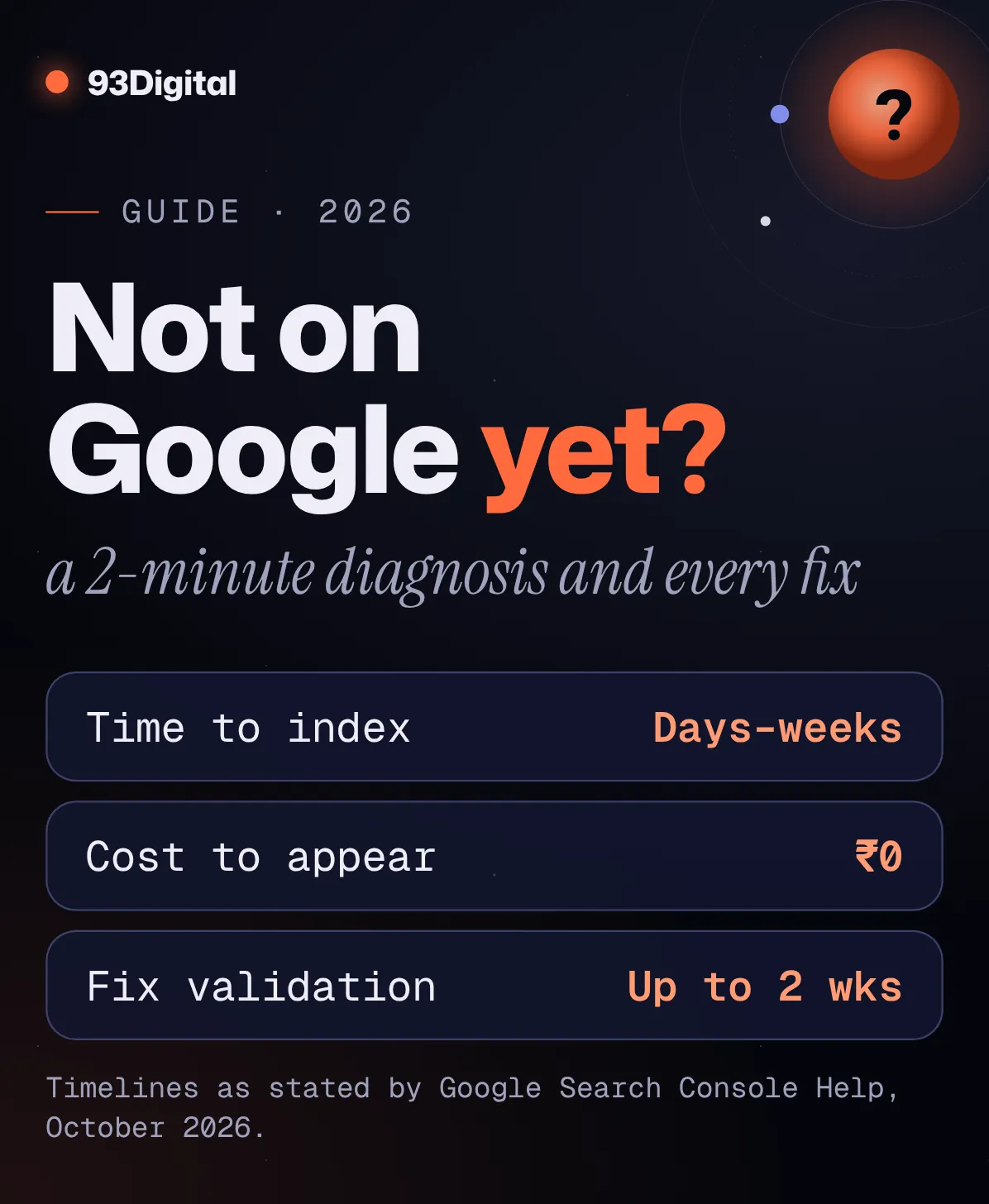
You launched the website. You shared the link on WhatsApp. Then you typed your business name into Google and… nothing.
Not on page one. Not on page five. It’s as if the site doesn’t exist.
Here’s the good news: in most cases, nothing is “wrong” with Google. Either Google hasn’t found your site yet, something on the site is telling Google to stay away, or Google has found it but other pages are beating it.
Each of those has a different fix. And you can work out which one you’ve got in about two minutes.
Quick answer: why is my website not showing on Google?
Your website usually isn’t showing on Google because it hasn’t been indexed yet (it’s new or Google hasn’t found it), something is blocking Google (a noindex tag, robots.txt rule or password), or it’s indexed but outranked by other pages. Search site:yourdomain.com to see which one it is.
- No results for site: not indexed. Set up Google Search Console, submit your sitemap and inspect your homepage.
- URL Inspection shows a block: remove the noindex tag, robots.txt rule or password, then request indexing.
- Results show, but not for your keywords: it’s a ranking problem. Work on content, internal links and your Google Business Profile.
- Brand new site: Google says indexing typically takes a day or two to a few weeks. Allow at least a week after submitting.
Here’s the thing: “not showing on Google” is two different problems wearing the same shirt. “Not indexed” means Google has no copy of your page. “Not ranking” means Google has it but shows other pages first. Fixing the wrong one wastes weeks.
In this guide I’ll walk you through:
- A 2-minute diagnosis that tells you which problem you have
- How long Google itself says indexing takes (and what it doesn’t promise)
- Setting up Google Search Console for a new site, step by step
- Every common cause, with how to spot it and how to fix it
- The WordPress, Shopify, Wix and Squarespace settings that quietly hide sites
- What to do when you’re indexed but still invisible, and what not to pay for
Why is my website not showing on Google? The 2-minute diagnosis
To find out why your website isn’t showing on Google, run three checks: a site: search, a search for your brand name, and Google Search Console’s URL Inspection tool. Together they tell you if the problem is indexing, a block, or ranking.
Turn off SafeSearch first, since Google notes it can filter results.
- Search
site:yourdomain.com. This lists pages Google has indexed from your site. Results show up? Your site is indexed. Zero results? Google doesn’t have it yet. For one specific page, usesite:followed by that page’s full URL. - Search your business or brand name. If the
site:search works but your brand search doesn’t show you, you’re indexed but being outranked. That’s common when your name is generic, like “Sharma Dental” or “Bright Future Classes.” - Open URL Inspection in Google Search Console. Paste your homepage URL into the tool. Google tells you “URL is on Google” or “URL is not on Google,” and if it’s not, why.
Don’t have Search Console yet? That’s your first job. I’ll show you the setup in a minute.
Not indexed or not ranking? Pick your path
Your three checks will put you in one of these rows:
| What you saw | What it means | Go to |
|---|---|---|
No results for site:, URL Inspection says “URL is not on Google” | Not indexed | Search Console setup and common causes |
| URL Inspection names a reason (noindex, robots.txt, 404, duplicate) | Blocked or excluded | Common causes table |
site: shows your pages, but you don’t appear for your keywords | Indexed but not ranking | Indexed but not ranking |
One important detail: Google says “URL is on Google” means the page is eligible to appear in search, not guaranteed to. So “on Google” and “showing on Google” aren’t quite the same thing.

How long does it take for a website to show up on Google?
Google says the total time to index a new page is typically anywhere from a day or two to a few weeks, depending on many factors. It asks you to allow at least a week after submitting a sitemap or indexing request before assuming something’s wrong.
That’s from Google’s help page on why a page is missing from Google Search. Its recrawling guide agrees: “Crawling can take anywhere from a few days to a few weeks.”
Notice what Google does not say. It doesn’t promise a date. Its guide to how Search works is blunt: “Google doesn’t guarantee that it will crawl, index, or serve your page.”
So what does that mean for you?
If your site went live three days ago, relax. If it’s been three weeks with Search Console set up and a sitemap submitted, it’s time to dig in.
One more thing about new sites. Google says it “discovers new sites from existing sites.” So if nothing links to yours, Google has fewer ways in. Add your website link to your Google Business Profile, social pages and relevant directories.
How do I get my website visible on Google? Set up Search Console
To get your website visible on Google, add it to Google Search Console, verify that you own it, submit your XML sitemap, and use URL Inspection to request indexing of your homepage. It’s free, and it’s the only way to see what Google sees.
Here’s the setup for a new site, start to finish:
- Add a property. Go to Google Search Console and sign in with a Google account your business owns (not your developer’s personal Gmail). You’ll pick a property type. A Domain property covers every version of your site (http, https, www, non-www and subdomains). A URL-prefix property covers only URLs starting with the exact address you enter.
- Verify ownership. A Domain property can only be verified with a DNS record, added wherever you bought your domain. Google says it “can take up to two or three days” for your provider to start serving that record. URL-prefix properties have more options: uploading an HTML file, adding an HTML tag, or using your Google Analytics or Tag Manager code.
- Submit your sitemap. Open the Sitemaps report, paste your sitemap URL into “Add a new sitemap” and submit. On WordPress with Rank Math, it lives at
yourdomain.com/sitemap_index.xml(you’ll find it under Rank Math SEO → Sitemap Settings). Other plugins and platforms use their own address, so check your CMS’s docs. You want the status to say Success. - Inspect your homepage and request indexing. Paste your homepage URL into URL Inspection, run a live test, then click Request indexing. Do it once. Google says requesting a recrawl multiple times “won’t get it crawled any faster.”
- Check the Page indexing report after a few days. Google says data “should begin to appear in your property in a few days.” This report lists which pages are indexed, which aren’t, and why.
Worth knowing:
- Submitting a sitemap is a hint, not an order. Google’s sitemap docs say it “doesn’t guarantee that Google will download the sitemap” or use it for crawling.
- Request indexing has a daily limit per property. Use it for your most important pages, not all 200 product pages.
- Only owners can submit sitemaps in the Sitemaps report. If your agency or developer set up Search Console under their own account, ask them to add you as an owner.
That last point matters more than it sounds. If your developer built the site and then moved on, taking the Search Console access with them, you’re flying blind. A proper website set-up and handover, with every account in your name, fixes that for good.
Why is Google not crawling or indexing my website? The common causes
Google usually isn’t crawling or indexing a website because the site is too new, a noindex tag or robots.txt rule blocks it, a password hides it, pages are duplicates, the server returns errors, or Google decided the page isn’t worth indexing yet.
URL Inspection or the Page indexing report will usually name the cause. Here’s what each means and how to fix it:
| Cause | How to check | Fix |
|---|---|---|
| Site or page is brand new | No site: results; URL Inspection says “not on Google” with no error | Submit sitemap, request indexing for the homepage, get links from your social profiles and listings, then wait at least a week |
| Noindex tag left on | Status “Excluded by ‘noindex’ tag”; view page source for <meta name="robots" content="noindex"> | Remove the tag or untick the CMS setting (see platform section), then click Validate fix |
| Blocked by robots.txt | Status “Blocked by robots.txt”; open yourdomain.com/robots.txt and look for Disallow: / | Delete the rule blocking pages you want in search |
| Password or login wall | Status “Blocked due to unauthorized request (401)”, or visitors see a password page | Remove the password or take the store out of private mode |
| Duplicate versions | “Duplicate without user-selected canonical” or “Duplicate, Google chose different canonical than user” | Pick one version; 301-redirect the rest and add a rel="canonical" tag |
| Broken pages or server errors | “Not found (404)”, “Soft 404” or “Server error (5xx)” | Fix the page or hosting; redirect moved pages to their new URL |
| Crawled, not indexed | “Crawled – currently not indexed” | Make the page more useful and unique, and link to it from important pages |
| Discovered, not crawled | “Discovered – currently not indexed” | Check hosting speed, add internal links, and give it time |
| Orphan pages | Page isn’t linked from your menu or any other page | Link it from navigation or related pages, and include it in your sitemap |
| Manual action | Search Console → Manual actions report | Fix every affected page, then click Request Review |
| Hacked or unsafe site | Search Console → Security issues report | Clean the site fully, then Request Review |
Status names as shown in Google Search Console’s Page indexing report and URL Inspection tool, checked October 2026.
Noindex vs robots.txt: the classic mix-up
A noindex tag tells Google “don’t put this page in search.” A robots.txt rule tells Google “don’t crawl this.”
Google’s robots.txt guide says it “is not a mechanism for keeping a web page out of Google.” A blocked URL can still show up in results, just without a description. And its noindex guide adds a twist: if robots.txt blocks a page, Google never sees the noindex on it.
The takeaway? For pages you want on Google, make sure neither is present.
“Crawled” vs “Discovered – currently not indexed”
These two cause the most panic. Here’s what Google’s Page indexing report help says they mean:
- Discovered – currently not indexed: Google found the URL but hasn’t crawled it yet. Typically it postponed the crawl because crawling right then might have overloaded your site.
- Crawled – currently not indexed: Google crawled the page but chose not to index it. Google says it “may or may not be indexed in the future,” and there’s no need to resubmit it.
“Crawled, not indexed” is the one to take seriously. Google looked, and passed. Usual suspects: thin pages, near-duplicates (40 city pages with only the city name swapped), or pages nothing else links to.
Most guides skip this part. Google says: “You should not expect all URLs on your site to be indexed, only the canonical pages.” Tag pages, filtered URLs and duplicates being excluded is normal.
After you fix something
Open the issue in the Page indexing report and click Validate fix. Google says validation “typically takes up to about two weeks, but in some cases can take much longer.” It stops if Google finds even one remaining example, so fix every instance first.
Manual actions and security issues work differently. You fix everything, then click Request Review. Google says most reconsideration reviews take several days or weeks.
WordPress website not showing on Google? Check these platform settings
If your WordPress website isn’t showing on Google, check Settings → Reading first: the “Discourage search engines from indexing this site” box adds a noindex tag to every page. Shopify, Wix and Squarespace have similar switches that hide a site.
These get switched on during the build so a half-finished site stays hidden. Then launch day comes, and nobody unticks the box.
WordPress
- Where: Settings → Reading → Search engine visibility.
- What to look for: the “Discourage search engines from indexing this site” box must be unticked.
- Why it matters: since WordPress 5.3, ticking it adds
<meta name='robots' content='noindex,nofollow' />to your site’s head, according to the WordPress documentation. - Also check: your SEO plugin. Rank Math, Yoast and others can set noindex on individual pages, post types or categories.
Shopify
- Where: Online Store in your Shopify admin.
- What to look for: new stores start in private mode, which shows a password page. Shopify’s help article says that in private mode, pages are “hidden from visitors and search engines.”
- Fix: click the Private label, choose Public and click Update (the first time, the button says “Launch store”). Shopify asks you to complete its required setup steps before you can launch.
Wix
- Where: SEO & GEO in your dashboard → Tools and settings → SEO Settings.
- What to look for: the “Let search engines index your site” toggle should be on, per Wix’s help centre. Wix says sites can be indexed whether they’re upgraded or not.
- Also check: individual pages, since Wix lets you hide specific pages from search engines.
Squarespace
- Where: Settings → Crawlers. The “Block Search engine crawlers” box should be unticked. Also check each page’s SEO tab for “Hide page from search results.”
- Watch out for: trial and expired plans. Squarespace’s help article says “Search engines won’t find trial, expired, or canceled sites,” and that a site-wide password (or one on the homepage) should be removed.
Five minutes of clicking here can save you five weeks of waiting.
Indexed but not ranking: why your website still isn’t showing up
If a site: search shows your pages but you don’t appear for your keywords, your website is indexed but outranked: Google is showing other pages it judges more relevant and higher quality for that search. The fix is better-matched content, stronger pages and local signals.
No Search Console setting will fix this one.
Indexing gets you into the library. Ranking decides whether anyone pulls your book off the shelf.
Here’s what to look at:
- Search intent. Google your target keyword and look at what ranks. If the top results are all guides and you have one service page, match the format people clearly want.
- Competition. A new site for a clinic in Indore can rank for “skin clinic in Vijay Nagar” much sooner than for “best dermatologist India.” Start with specific, local, longer searches you can actually win.
- Internal links. Google’s guide to how Search works says it discovers pages by following links from known pages. Link your key service pages from your homepage and menu, and link related pages to each other.
- Content quality. Google’s helpful content guidance asks questions like “Does the content provide original information, reporting, research, or analysis?” and “Is this the sort of page you’d want to bookmark, share with a friend, or recommend?” A 200-word page saying “we provide best services” won’t pass.
- Your local profile. For “near me” and map searches, your Google Business Profile does a lot of the work. Google says local results are based mainly on relevance, distance and prominence, and that “there’s no way to request or pay for a better local ranking.” If your profile isn’t verified yet, start with our guide to Google Business Profile verification.
Ranking takes months, not days. That’s normal, not a sign of failure. If you’d like help building the content, links and technical health that move rankings, that’s what our SEO services are for. (Wondering what that kind of work costs? Here’s our breakdown of SEO cost in India.)
Need enquiries this month while SEO builds up? Search ads can put you on page one today. Here’s what Google Ads costs in India.
Why won’t Google accept my website? (And what not to pay for)
Google doesn’t “accept” or approve websites: there’s no application, fee or approval queue, because Google finds sites through links and sitemaps, and it says it costs nothing to appear in organic results. If your site isn’t showing, it’s a crawling, indexing or ranking issue.
That matters, because plenty of people sell shortcuts to frustrated site owners.
Google’s own guide, Do you need an SEO?, is clear: “Google never accepts money to include or rank sites in our search results,” and “Advertising with Google won’t have any effect on your site’s presence in our search results.”
So skip all of these:
- “Guaranteed indexing in 24 hours” or “guaranteed page one.” Google says “No one can guarantee a #1 ranking on Google,” and its own docs say it doesn’t guarantee indexing either.
- “We’ll submit your site to 1,000 search engines.” Google’s guide specifically says to avoid SEOs that talk about “submitting your site to thousands of search engines.”
- “Priority submit” or a “special relationship with Google.” Google calls both out as warning signs by name.
- Clicking Request indexing over and over. Google says repeated requests won’t get a URL crawled any faster.
- Cold emails saying “your site isn’t on Google, we can fix it.” Google says to be wary of firms that email you out of the blue.
- Handing over full Search Console access to someone you’ve just met. When you first bring in an SEO, Google suggests giving read access only.
- Changing your URLs or domain in a panic. A move done badly can make things worse. If you must move, Google recommends 301 redirects from old URLs to new ones.
If a “fix” sounds instant and costs money, it’s almost certainly not a fix.
Website not showing on Google: frequently asked questions
Why is my website not showing on Google?
Usually because it hasn’t been indexed yet, something is blocking Google (a noindex tag, a robots.txt rule or a password), or it’s indexed but outranked by other pages. Search site:yourdomain.com and use Search Console’s URL Inspection tool to find out which one applies.
How do I get my website visible on Google?
Add your site to Google Search Console, verify ownership, submit your XML sitemap and request indexing for your homepage with the URL Inspection tool. Make sure no noindex tag, robots.txt rule or password is blocking it, and link to your site from your Google Business Profile and social pages so Google can discover it.
How long does it take for a website to show up on Google?
Google says indexing a new page typically takes anywhere from a day or two to a few weeks, depending on many factors. It recommends allowing at least a week after submitting a sitemap or indexing request before assuming there’s a problem. Ranking well for competitive keywords takes much longer.
Why is Google not crawling my website?
Common reasons are that Google hasn’t discovered the site yet (no sitemap and no links from other sites), a robots.txt rule blocks crawling, the site is behind a password, or the server returns errors. If Search Console shows “Discovered – currently not indexed,” Google has found the URL but postponed crawling it.
Why won’t Google accept my website?
Google doesn’t approve or reject websites, and there’s nothing to apply for. It costs nothing to appear in organic results, and Google doesn’t accept payment to include sites. If your site is missing, look for a technical block, an indexing delay or a ranking issue instead.
Why is my WordPress website not showing on Google?
Check Settings → Reading in WordPress. If “Discourage search engines from indexing this site” is ticked, WordPress adds a noindex tag to your pages. Untick it, check your SEO plugin isn’t setting noindex too, then submit your sitemap and request indexing in Search Console.
What does “Crawled – currently not indexed” mean?
Google crawled the page but chose not to index it for now. Google says it may or may not be indexed in the future and you don’t need to resubmit it. Make the page more useful and unique, and link to it from your important pages.
Can I pay Google to index or rank my website faster?
No. Google says it never accepts money to include or rank sites in organic results, and that advertising with Google doesn’t affect your organic presence. Ads can show your site in the sponsored results, but that’s separate from indexing.
Sources and how we researched this
We researched this guide in October 2026. We started from what Google’s own AI Overview and top results say for “why is my website not showing on Google,” then checked every cause and timeline against Google Search Central and Search Console Help. Platform settings were checked on WordPress, Shopify, Wix, Squarespace and Rank Math’s official documentation. Where Google doesn’t give a number (for example, the exact Request indexing limit), we’ve left it out.
- Search Console Help: Why is my page missing from Google Search? (diagnosis steps, site: search, indexing timelines)
- Search Console Help: URL Inspection tool (“URL is on Google” meaning, Request indexing, daily limits)
- Search Console Help: Page indexing report (status meanings, validation timing)
- Google Search Central: Ask Google to recrawl your URLs (crawl timing, quota, repeated requests)
- Google Search Central: How Google Search works (crawling, indexing, serving; no guarantees; discovery via links)
- Search Console Help: Add a website property (Domain vs URL-prefix properties, when data appears)
- Search Console Help: Verify your site ownership (verification methods, DNS timing)
- Search Console Help: Sitemaps report (submitting a sitemap, statuses, owner permission)
- Google Search Central: Build and submit a sitemap (sitemaps as hints, size limits)
- Google Search Central: Robots.txt introduction (what robots.txt does and doesn’t do)
- Google Search Central: Block indexing with noindex (noindex tag and robots.txt conflict)
- Google Search Central: Consolidate duplicate URLs (canonical signals)
- Search Console Help: Manual actions report (what manual actions do, review timing)
- Search Console Help: Security issues report (hacked content, malware, review process)
- Google Search Central: Creating helpful, reliable, people-first content (content quality questions)
- Google Search Central: Do you need an SEO? (guarantees, “thousands of search engines,” paying Google)
- Google Business Profile Help: Tips to improve your local ranking (relevance, distance, prominence)
- WordPress documentation: Settings Reading screen (Search engine visibility setting)
- Shopify Help Center: Password page and private mode (how private mode hides a store, how to launch)
- Wix Help Center: Managing search engine indexing (“Let search engines index your site” toggle)
- Squarespace Help: Why doesn’t my site appear in Google search results? (trial sites, passwords)
- Squarespace Help: Hiding your site from search results (Crawlers setting, page-level hiding)
- Rank Math: How to configure sitemaps (sitemap_index.xml location)
Spotted a setting that’s moved or a step that’s changed? Tell us and we’ll update this guide.
The bottom line
When your website isn’t showing on Google, don’t guess. Run the site: search, search your brand name, and open URL Inspection. Two minutes tells you which problem you have.
Not indexed? Set up Search Console, submit your sitemap, remove any noindex tag, robots.txt block or password, and give Google at least a week.
Indexed but not ranking? That’s a content, links and local-profile job, and it takes months, not days.
And whatever you do, don’t pay anyone who promises guaranteed indexing. Getting on Google is free. Getting chosen by Google is the real work.
Still stuck, or want someone to check your site’s indexing, speed and conversion set-up properly? Get a free growth audit and we’ll tell you exactly what’s holding your site back.
Founder of 93Digital. Rohit has worked in SEO and digital marketing since 2007, through every major Google update, and runs paid ads with one rule: a campaign has to pay for itself.